
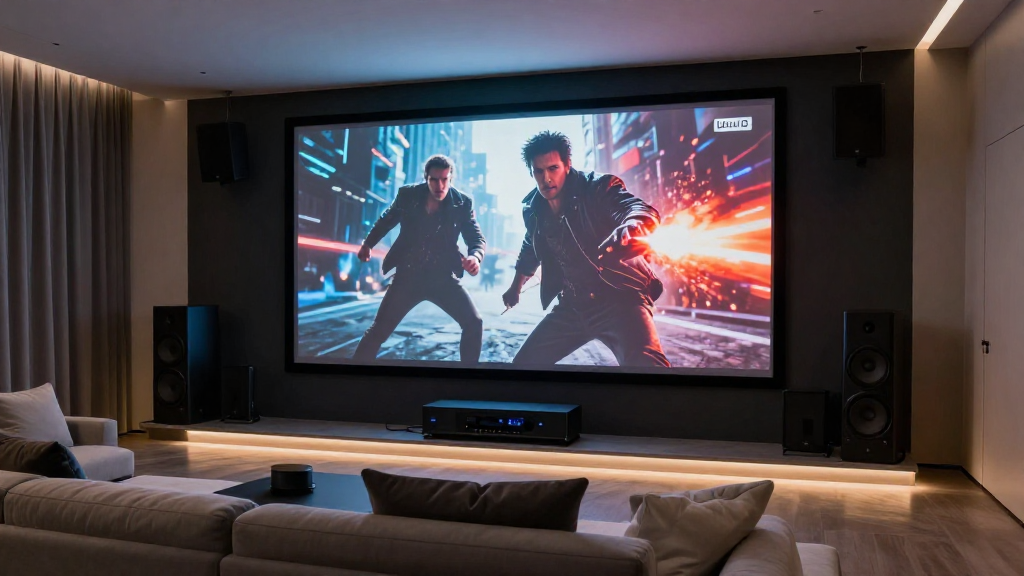
In this article, we will explore home theater motion smoothing explained, giving you a comprehensive understanding of its functionality and implications.
What Is Motion Smoothing?
Motion smoothing is a technology used in home theater systems to enhance the viewing experience. By increasing the frame rate, motion smoothing aims to reduce motion blur, providing a clearer picture during fast-moving scenes. This technology is often found in modern TVs and projectors, making it a significant feature for home cinema enthusiasts.
How Does Motion Smoothing Work?
Motion smoothing works by inserting additional frames between the original ones. This process is known as frame interpolation. Here’s how it generally operates:
- **Frame Analysis**: The TV analyzes the original frames for motion.
- **Frame Creation**: Based on the analysis, new frames are created to fill the gaps.
- **Display**: The modified sequence is then displayed to the viewer, resulting in smoother motion.
Why Is Motion Smoothing Used?
Motion smoothing is employed primarily to enhance the viewing experience for certain types of content. Here are some reasons why it’s commonly used:
- **Sports**: Fast-paced sports can benefit from reduced motion blur.
- **Action Movies**: High-speed action sequences appear clearer and more immersive.
- **Video Games**: Gamers may prefer smoother motion for a more responsive feel.
What Are the Pros of Motion Smoothing?
While motion smoothing has its critics, it also offers several advantages that can enhance your viewing experience. Understanding these benefits can help you decide whether to use this feature.
Enhanced Clarity
One of the most significant benefits of motion smoothing is enhanced clarity. This technology reduces blurriness, making fast-moving objects easier to see. Enhanced clarity can lead to a more enjoyable viewing experience, particularly during action sequences.
Reduced Motion Blur
Motion blur can be distracting, especially in fast-paced scenes. Motion smoothing effectively reduces this blur, making the action appear smoother and more cohesive. This reduction in motion blur can be especially beneficial in sports broadcasts and action films.
Customizable Settings
Many modern TVs allow users to customize motion smoothing settings. This means you can adjust the level of smoothing according to your preferences. Whether you want a subtle enhancement or a more pronounced effect, having control over the settings can improve your overall experience.
What Are the Cons of Motion Smoothing?
Despite its benefits, motion smoothing is not without its drawbacks. Understanding these cons is essential for making an informed decision.
Soap Opera Effect
One of the most commonly cited downsides of motion smoothing is the ‘soap opera effect.’ This phenomenon occurs when the technology makes movies appear overly smooth and unrealistic, resembling a daytime soap opera. For some viewers, this can detract from the cinematic experience.
Increased Input Lag
Motion smoothing can introduce input lag, which may be a significant issue for gamers. The additional processing time required to create and display the interpolated frames can lead to delays between the user’s actions and the screen’s response. This lag can impact gameplay, making it less enjoyable.
Loss of Detail
In some cases, motion smoothing can lead to a loss of detail in the image. This is particularly true for slower-paced films or shows, where the original frame rate is crucial for conveying the intended visual style. Motion smoothing can alter the director’s vision, leading to a compromised viewing experience.
How to Adjust Motion Smoothing Settings?
Adjusting motion smoothing settings can be straightforward, but it often varies by manufacturer. Here’s a general guide on how to adjust these settings for your home theater system.
Accessing the Settings Menu
To adjust motion smoothing, start by accessing your TV or projector’s settings menu. This is typically done using the remote control. Look for options labeled as ‘Picture Settings’ or ‘Display Settings.’
Finding Motion Smoothing Options
Once in the picture settings, navigate to options related to motion enhancement. This may be labeled as ‘Motion Smoothing,’ ‘Motion Interpolation,’ or ‘Smooth Motion.’ Some brands may have specific names for this feature, so refer to your manual for precise terminology.
Experimenting with Different Levels
After locating the motion smoothing settings, experiment with different levels. Many TVs offer options ranging from ‘Off’ to ‘High.’ It’s advisable to view a variety of content while making adjustments to find the setting that best suits your viewing preferences.
When Should You Use Motion Smoothing?
Knowing when to use motion smoothing can greatly enhance your viewing experience. Here are a few scenarios where it may be beneficial.
During Sports Events
Sports, especially fast-paced ones like football and basketball, are ideal candidates for motion smoothing. The quick movements and rapid camera pans can benefit significantly from this technology, providing a clearer picture.
Action-Packed Movies
For action-packed films, motion smoothing can enhance the fight scenes and chase sequences. This can make the action appear more fluid, thereby improving your overall enjoyment of the film.
Gaming Sessions
While caution is advised due to potential input lag, motion smoothing can still enhance gaming experiences in certain scenarios. When playing action games, it can provide a more immersive experience by reducing motion blur.
Conclusion: Should You Enable Motion Smoothing?
Deciding whether to enable motion smoothing in your home theater ultimately depends on personal preference and the type of content you enjoy. While it offers several benefits, such as enhanced clarity and reduced motion blur, the potential drawbacks, including the soap opera effect and input lag, should also be considered. Experimenting with different settings and types of content can help you determine the best approach for your viewing experience.